
The Domain Name System (DNS) is the phonebook of the internet, translating human‑readable domain names into IP addresses. While most people rely on their Internet Service Provider’s default DNS, switching to a secure public DNS can dramatically improve privacy, speed, and protection against malware or phishing sites. In this guide we rank the top 5 secure public DNS services in 2025, explain their unique security features, and show you how to change DNS on any device.
1. Why Switch to a Secure Public DNS?
- Enhanced privacy – many public DNS providers anonymise or minimise logs, preventing ISPs from tracking every site you visit.
- Malware & phishing protection – built‑in blocklists stop known bad domains before your browser even connects.
- Parental controls – optional filters restrict adult or violent content network‑wide.
- Faster resolution – global Anycast networks shorten query distance and shave milliseconds off page loads.
- Encrypted queries – modern services support DNS‑over‑HTTPS (DoH) and DNS‑over‑TLS (DoT) to stop man‑in‑the‑middle snooping.
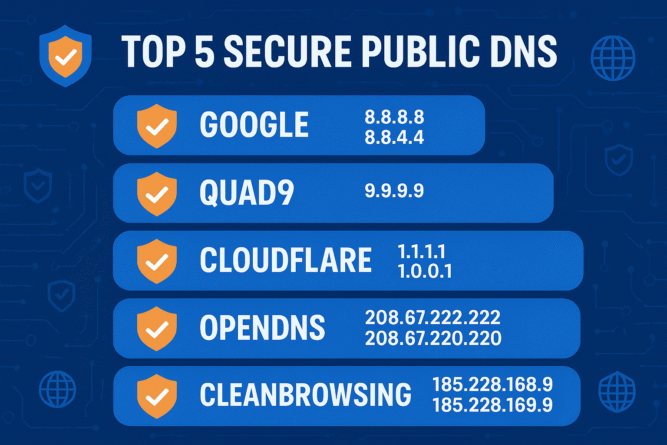
2. Top 5 Secure Public DNS Providers (2025)
| Rank | Provider | Primary / Secondary IPv4 | Privacy Policy | Security Features | Avg Global Latency* |
|---|---|---|---|---|---|
| 1 | Cloudflare 1.1.1.2 | 1.1.1.2 / 1.0.0.2 | No IP logs, 24 h retention | Malware blocking, DoH, DoT, DNSSEC | 11 ms |
| 2 | Quad9 (9.9.9.9) | 9.9.9.9 / 149.112.112.112 | No personally‑identifiable logs | Threat‑intel malware filter, DNSSEC, DoH, DoT | 18 ms |
| 3 | Google Public DNS Secure | 8.8.8.8 / 8.8.4.4 | 24–48 h truncated logs | DNSSEC validation, DoH, DoT | 22 ms |
| 4 | OpenDNS FamilyShield | 208.67.222.123 / 208.67.220.123 | Retains anonymised logs | Adult‑content filter, Phishing protection | 25 ms |
| 5 | CleanBrowsing Security Filter | 185.228.168.9 / 185.228.169.9 | Pseudonymised logs | Malware, adult, and mixed‑content blocking, DoH, DoT | 29 ms |
*Latency based on DNSPerf January 2025 worldwide averages.
3. Detailed Provider Breakdown
3.1 Cloudflare 1.1.1.2 / 1.1.1.3
Cloudflare offers the fastest resolver network and two “2” and “3” variants: 1.1.1.2 blocks malware, while 1.1.1.3 blocks malware plus adult sites. Queries can be encrypted via DoH/DoT and the company deletes source IP logs within 24 hours.
3.2 Quad9
A non‑profit alliance that partners with IBM X‑Force and other threat‑intel feeds to block millions of malicious domains in real time. Quad9 does not store personally identifiable data and supports DNSSEC plus encrypted transport.
3.3 Google Public DNS Secure
Google’s service focuses on speed and DNSSEC validation. In 2025 Google introduced an opt‑in Safe Browsing layer that blocks phishing and drive‑by download sites without altering performance.
3.4 OpenDNS FamilyShield / Home
FamilyShield is pre‑configured to block adult content—perfect for home networks with children. Advanced users can create a free OpenDNS Home dashboard to fine‑tune category filters and view stats.
3.5 CleanBrowsing Security Filter
CleanBrowsing offers three free tiers; the Security Filter stops phishing, malware, and botnet domains. Paid plans allow custom blocklists and time‑based rules for bedtime enforcement.
4. How to Change DNS on Any Device
- Windows 11 / 10
Settings → Network & Internet → Ethernet / Wi‑Fi → Hardware properties → Edit DNS. Enter the IPv4 addresses above and select Encrypted (DoH). - macOS Ventura / Sonoma
System Settings → Network → Wi‑Fi → Details → DNS. Add new servers and click OK. - Android 14
Settings → Network & Internet → Private DNS → choose Private DNS provider hostname (e.g.,security.cloudflare-dns.com). - iOS / iPadOS 17
Settings → Wi‑Fi → (i) → Configure DNS → Manual → Add Server. - Home Router
Log into the web interface, locate Internet or WAN settings, and replace ISP resolvers with your chosen DNS. Save and reboot.
Tip: Changing DNS on the router secures every device automatically—including smart TVs and IoT gadgets that can’t edit DNS locally.
5. Testing & Benchmarking Your New DNS
- Use 1.1.1.1/help or dnsleaktest.com to confirm queries use the new resolver.
- Run DNSPerf CLI or NameBench to benchmark latency from your location.
- Verify malware blocking by trying to visit
malware.testcategory.com(Cloudflare test domain) orinternetbadguys.com(OpenDNS test).
6. Pros & Cons of Using Secure Public DNS
| Pros | Cons |
| Better privacy than ISP DNS | Third‑party still sees plain requests unless DoH/DoT enabled |
| Built‑in malware & phishing defense | Cannot replace full antivirus/IPS |
| Faster global infrastructure | May be blocked in restrictive regions |
| Parental controls with zero software | Over‑blocking possible on strict filters |
Outbound Links:
- Cloudflare Security DNS docs
- Quad9 Threat Blocking
- Google Public DNS details
- OpenDNS FamilyShield
- CleanBrowsing Free Filters
Internal Links:
Switching to a secure public DNS server is one of the fastest, zero‑cost upgrades you can make to your online safety. Whether you choose Cloudflare’s speed, Quad9’s non‑profit transparency, Google’s performance, OpenDNS’s family filters, or CleanBrowsing’s all‑round security, you’ll browse faster and block threats before they reach your devices.
Most Commented